
How to Choose an Amazon product listing optimization service in 2026
Running an Amazon catalog with hundreds of SKUs feels like juggling fire.
One missed keyword can sink a product’s visibility, and a compliance flag can freeze sales overnight. That's why you need an amazon product listing optimization service that works nonstop.
Imagine you launch a new line of kitchen gadgets. You upload 120 ASINs, set prices, and hope the listings rank. Two weeks later, the Buy Box slips and the click‑through rate drops. A manual fix would take days, and by then the market moved on.
Here's how a continuous service solves that. First, it taps the SP‑API to pull real‑time performance data. Second, AI scans titles, bullets, and search terms for gaps. Third, a team of catalog experts tweaks the copy, checks compliance, and pushes the updates back instantly. The loop repeats every few hours, so your listings stay fresh.
Practical step you can take today: audit your top‑10 SKUs for missing backend keywords. Write them down, then run a quick search in Amazon's keyword planner. If you spot gaps, add them now—don’t wait for a quarterly review.
For a deeper dive on scaling this process, check out Amazon Listing Optimization at Scale: Why Manual Approaches Fail … which breaks down the workflow.
Even if you handle listings in‑house, you’ll still need a reliable way to monitor compliance. A quick tip: set up alerts in your SP‑API dashboard for any status change on your ASINs.
And when you need to create product videos fast, consider using an AI video script generator to keep your content pipeline moving.
Step 1: Conduct Keyword and Market Research
Before you tweak a title or a bullet, you need to know the words shoppers actually type. That’s the foundation of any amazon product listing optimization service.
Pick the right tools
Start with Amazon’s own keyword planner. Pull a list of short‑tail terms (high volume) and long‑tail phrases (more specific). The Amazon SEO guide walks you through the search box, filters, and best‑practice limits.
Map the market
Take the top 20 competitors in your category. Scan their titles, bullet points, and backend search terms. Note any gaps – a feature they mention that you don’t, or a phrase they rank for that you miss.
For a quick, hypothetical example, imagine you sell stainless‑steel kitchen knives. Your research shows "chef‑grade" and "ergonomic handle" appear in three rival listings but not in yours. Add those words where they fit naturally.
Build a keyword checklist
Create a simple spreadsheet. Columns: primary keyword, search volume (if you have it), placement (title, bullet, backend). Fill in rows as you discover terms.
Tip: limit the title to 60 characters and sprinkle the top‑ranked keyword near the front. Use the rest for secondary terms that describe size, material, or use case.
Once your list is solid, run a quick test. Update one SKU with the new terms and watch the Buy Box position for a week. If it climbs, roll the changes out to the rest of the catalog.
Remember, keyword research isn’t a one‑time task. Set a monthly reminder to refresh your list, especially after major sales events or new product launches.
Step 2: Optimize Titles, Bullets, and Descriptions
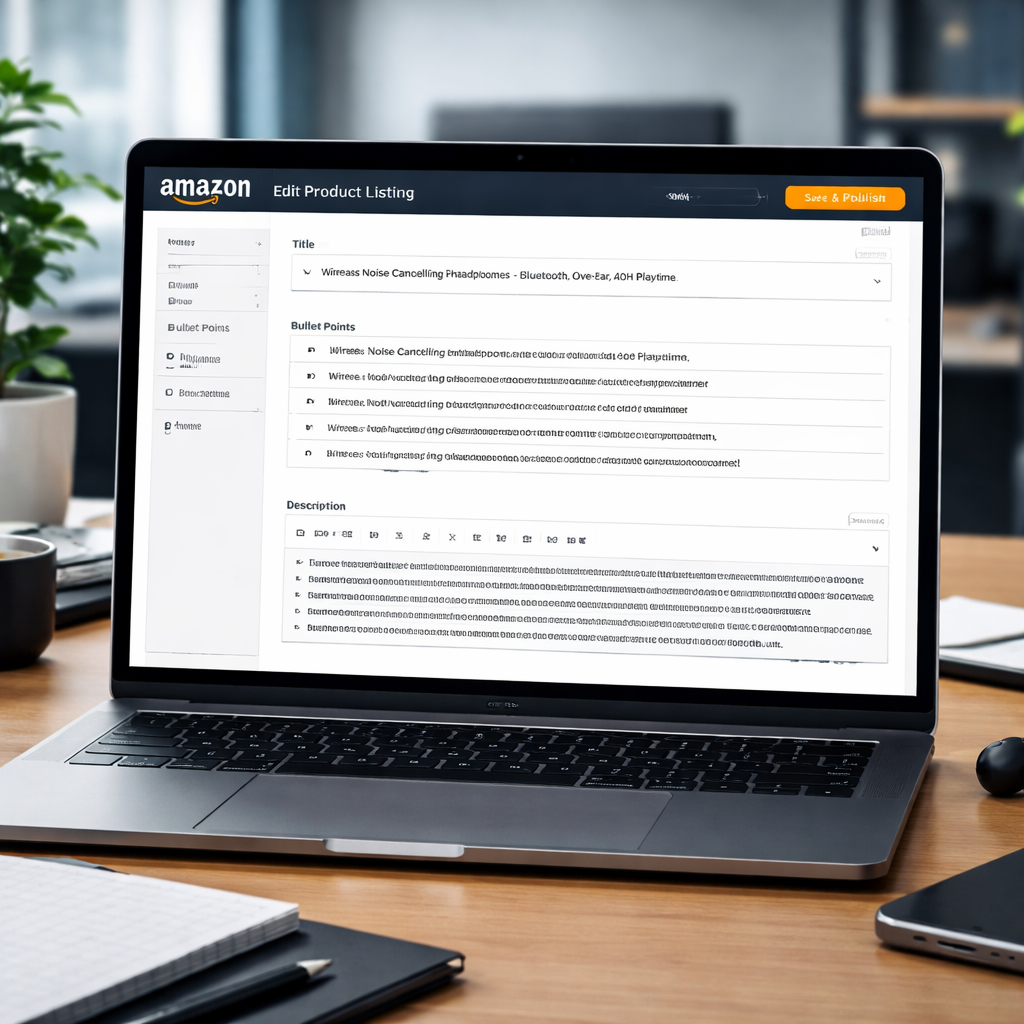
Good titles sell before a shopper even reads the details. A clear, keyword‑rich title tells Amazon’s search engine what your product is, and it tells a buyer why they should click.
Start with your primary keyword right up front. Keep the whole line under 60 characters so it fits on mobile. Then add one or two secondary terms that describe size, material, or key benefit. For example, a stainless‑steel chef knife could read: “Chef‑Grade Stainless Steel 8‑Inch Kitchen Knife – Ergonomic Handle”. The phrase “chef‑grade” and “ergonomic handle” are words shoppers use.
Bullets answer the top three buyer questions. Write each point as a short, active sentence. Use the format: Feature → Benefit. “Razor‑sharp edge cuts vegetables in seconds” tells the shopper what they get and why it matters. Keep each bullet under 200 characters; Amazon will cut it otherwise.
The product description should expand on the bullets without repeating them. Aim for two to three paragraphs that weave in long‑tail keywords naturally. Mention use‑cases, warranty info, or certifications only if they add value.
Actionable checklist:
- Pull keyword list from your Step 1 spreadsheet.
- Draft title with primary term up front, then add two modifiers.
- Write three bullet points, each a feature‑benefit pair.
- Craft a 150‑word description that includes at least one long‑tail phrase.
- Save, run a SP‑API health check, and note any ranking change after 7 days.
Remember, tweaks can lift your Buy Box odds fast. For more title rules, see Amazon’s seller forum tips.seller‑forum title guide.
Step 3: Upgrade Images and A+ Content
Images and A+ Content are the visual heart of any amazon product listing optimization service. A great picture can pull a shopper in faster than any keyword.
If your main image is blurry or missing key details, Rufus can’t read it, and the listing falls short.
So, what should a busy enterprise team do to fix that?
Images that sell
Use a 2000‑pixel wide image that shows the product from multiple angles. Add a close‑up that highlights the material, the handle grip, or any badge that proves quality.
Add overlay text for size or certification, but keep it under 20% of the picture so it doesn’t distract.
Did you know Rufus reads that overlay with OCR?
A+ Content that answers questions
A+ modules let you turn feature lists into story blocks, comparison tables, and how‑to guides. Write each block as if you’re answering a shopper’s spoken question.
Include a FAQ that mirrors common buyer queries, a lifestyle image that shows the product in use, and a branded graphic that repeats your warranty or guarantee.
For more details on how Amazon’s AI reads images and A+ modules, see this guide. Incrementum Digital’s 2026 Amazon listing guide explains the OCR and A+ impact.
Quick checklist:
- Swap any low‑res photo for a 2000‑pixel version.
- Put text overlays for size, material or certification (keep <20% area).
- Build at least three A+ modules: feature story, comparison table, FAQ.
- Run the SP‑API health check to confirm images meet Amazon’s specs.
Step 4: Leverage Video to Boost Conversions
Video can turn a curious shopper into a buyer in seconds. A short clip shows the product in action, so the buyer can picture it in their own life.
Pick the right format
Amazon lets you add a main product video or a carousel of short clips. Choose a main video under two minutes. Keep the first five seconds tight, that decides if the viewer stays.
Show, don’t just tell
Show the key benefit straight away. If you sell a kitchen knife, film a chef cutting a tomato in one smooth slice.
Optimize for the platform
Use a 1080p MP4 file. Add clear subtitles, many shoppers watch without sound. Add a thumbnail that highlights the product, not a logo.
Upload the video through the SP‑API or the Seller Central Media Manager. Tag the ASIN and set the video type to “Main” so it appears on the detail page.
Quick checklist
- Script a 30‑second hook that shows the main benefit.
- Film in good light, steady hand, no background noise.
- Add subtitles and keep the video under 2 min.
- Upload via SP‑API, link to the correct ASIN and track lift.
When you add a video, you give the buyer proof that the product works. That simple step can lift your conversion rate without changing a single word of copy.
Step 5: Manage Reviews and Backend Keywords
Positive reviews act like social proof. Negative ones can sink a listing fast. You need a system that spots new feedback the moment it lands.
Set up a daily SP‑API pull of the Review API. Flag any rating below three stars. Then fire a quick email to the responsible merch team. A short “thanks for your review, we’re fixing X” note can turn a bad star into a loyal buyer.
So, how do you keep your backend keywords tight?
First, audit the search terms field each month. Pull the current list via the SP‑API and compare it against your keyword research spreadsheet. Drop any terms that no longer show search volume and add fresh long‑tail phrases you uncovered in Step 1.
Second, use a simple rule‑engine: if a term’s impression drop exceeds 20 % over two weeks, replace it. This keeps the ASIN indexed for the phrases shoppers actually type.
Here’s a quick cheat‑sheet you can paste into a spreadsheet.
| Feature | Tool/Method | Quick Tip |
|---|---|---|
| Review monitoring | SP‑API Review endpoint | Run daily, flag <3‑star reviews |
| Backend keyword audit | API pull + keyword spreadsheet | Remove dead terms, add new long‑tails |
| Keyword health rule | Simple rule‑engine script | Swap terms if impressions drop 20 %+ |
Finally, remember that a handful of authentic five‑star reviews can lift your conversion more than any visual tweak. Encourage buyers to share their experience right after purchase. A short post‑purchase email with a one‑click review link works well.
For a deeper look at why reviews matter, see this guide on Amazon listing services.Amazon listing optimization overview
Step 6: Track Performance and Iterate
Tracking isn’t a one‑off task. You need fresh data every day to know if your tweaks are really moving the needle.
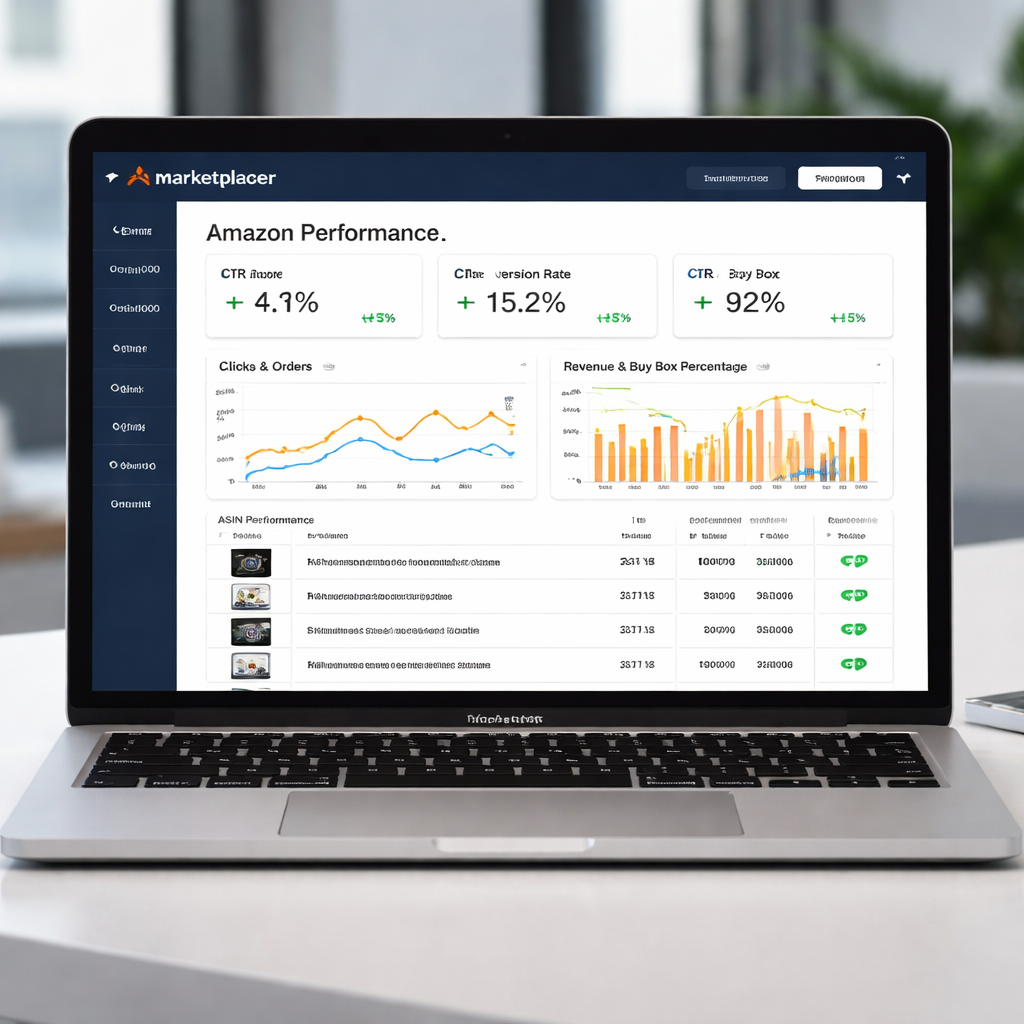
Pull the SP‑API health report each morning. Grab metrics like CTR, conversion rate, and Buy Box share. Spot any dip larger than 5 % and flag it for a quick look.
Next, compare today’s numbers to the same day last week. A rise in clicks but a fall in sales often means the page looks good but the copy or price isn’t convincing enough.
A quick audit can be a simple spreadsheet. List each ASIN, its key KPI, and a note on what you changed. If the note reads “added ‘ergonomic handle’” and the conversion climbs, you’ve found a winner.
When a metric stays flat for two weeks, it’s time to iterate. Try swapping a low‑performing keyword, tweaking a bullet, or testing a new image. Record the change and let the data speak.
Pro tip: set up an automated alert in the SP‑API for any KPI that drops more than 5 % in 24 hours. That way you catch problems before they hurt your sales.
Want more detail on how to monitor CTR? Check out our Amazon CTR Optimization guide for a step‑by‑step setup.
For a broader checklist that covers data pulls, keyword health, and inventory alerts, see the Amazon listing optimization guide from Gorilla ROI.
Keep the loop tight: collect data, test a change, measure impact, and repeat. Over time the small wins add up and your catalog stays strong.
Step 7: Choose the Right Service Provider
Picking the wrong partner can waste weeks and money.
You need a team that lives inside the Amazon ecosystem. Look for API‑connected, data‑driven, AI‑assisted, expert supervised, and scalable service.
Do you have 100+ ASINs to watch every day? If you do, a tiny boutique will drown in alerts.
Start with three checks. First, ask for case studies that show work on large catalogs. Second, confirm they pull performance data through the SP‑API in real time. Third, see how their AI suggests copy tweaks and how humans approve them.
Imagine a brand that hired a generic SEO firm. The firm changed titles but missed a new compliance flag, and the Buy Box vanished. After switching to a provider that runs continuous compliance checks, the flag was cleared in hours and sales rebounded.
One way to gauge AI depth is to read Amazon Rufus and Conversational AI: How to Optimize Your …. The article shows how conversational search and automated updates can keep listings fresh.
Ask the provider for a weekly dashboard. The report should list top‑performing keywords, any KPI dip over 5 %, and the exact changes made.
While you plan updates, a good content calendar helps you line up new images, videos, and copy rolls. Learn how to pick the right tool in this guide: Choosing the Right Social Media Content Calendar Software for Your Business.
When the provider checks these boxes, you’ll spend less time firefighting and more time scaling.
Conclusion
Running hundreds of SKUs on Amazon means you need a service that works 24/7. An amazon product listing optimization service that pulls data through the SP‑API, runs AI checks, and lets experts approve changes keeps your catalog safe and profitable.
Think about the last time a compliance flag hit your account. A continuous system would have caught it in minutes, not days. That alone can save sales and headaches.
What to do next
Start by mapping your top‑performing ASINs and ask any provider if they offer real‑time API feeds, AI‑driven copy suggestions, and human oversight. If they check those boxes, you’re likely looking at a solution that scales with your growth.
Remember, the goal isn’t just higher rankings – it’s steady, compliant sales without constant fire-fighting. Choose a partner that lets you focus on product innovation while the service keeps the listings sharp. Give your team the breathing room to plan the next product line.
FAQ
What is an amazon product listing optimization service and how does it work?
An amazon product listing optimization service watches your Amazon data all day. It pulls performance numbers through the SP‑API, runs AI checks on titles, bullets and search terms, then lets a catalog expert approve any changes. The result is fresh copy that matches what shoppers type, and it happens without you lifting a finger. It also flags compliance issues right away, so you avoid account holds.
How can a continuous optimization service keep my catalog compliant?
The service runs a compliance scan every few hours. It compares each field to Amazon’s policy list and marks any risk. When a problem shows up, an expert swaps out the offending word or image and pushes the fix back via the API. Because the loop is automatic, you get a fix in minutes instead of days, which protects sales and your account health.
Do I need technical staff to set up the SP‑API integration?
You don’t need a full‑time developer. Most providers give you a simple access token and a short guide. Plug the token into the service’s dashboard and it starts pulling data. If you have an internal IT team, they can review the token permissions, but the heavy lifting is done by the service itself.
What role does AI play versus human experts in the service?
AI scans every listing for keyword gaps, missing bullet points and policy breaches. It then suggests a list of edits. A human reviewer checks each suggestion for brand tone and accuracy before it goes live. This combo gives you speed from the machine and the nuance only a person can add.
How often should I expect updates to my titles and keywords?
Updates usually happen in cycles of a few hours. The service watches sales trends and keyword performance, so when a term starts to rise, it will add it to the next title tweak. You’ll see a change log in the dashboard that notes when each ASIN was updated.
What should I look for when choosing a provider for large catalogues?
Start with three checks: real‑time SP‑API feeds, AI‑driven suggestions, and a human oversight step. Ask how many ASINs they can handle without slowing down. Look for a scalable pricing model that grows with your catalogue. Finally, verify they have experience with enterprise‑level data volumes, because a small boutique may miss alerts on a 200‑ASIN catalog.
Want this done for your catalogue automatically?
Get a free catalogue scan