
How to Choose an Amazon Product Feed Management Service in 2026
Choosing the right amazon product feed management service can feel like a maze. The wrong tool can waste time, money, and even get your listings pulled. In this guide you’ll get a step‑by‑step plan to set up, map, automate, optimize, and monitor your Amazon feeds so you can scale without a hitch.
We examined five leading Amazon product feed management services across three sources and discovered that the priciest platform, ChannelAdvisor, offers no API or AI assistance – a stark contrast to the industry norm.
| Name | Starting Price | API Connected | AI‑Assisted | Best For | Source |
|---|---|---|---|---|---|
| Continuous Amazon Listing Optimization (Our Pick) | — | Yes | Yes | Best overall integration | marketplacer.agency |
| ChannelAdvisor | ranges from $12,000 to $18,000 | No | No | Best for high‑budget enterprises | ecommerce.folio3.com |
| Feeditor | Priced affordably at $33.99 per month | No | No | Best for budget | adcore.com |
| Feedonomics | — | No | No | Best for video walkthroughs | ecommerce.folio3.com |
| DataFeedWatch | — | No | No | Best for simplicity | ecommerce.folio3.com |
Step 1: Set Up Your Amazon Seller Account
Before any feed can move, you need a professional Amazon seller account. If you’re still on an individual plan, you’ll hit limits on SKU count and won’t get access to the SP‑API, which most top‑tier amazon product feed management services rely on.
Here’s a quick walk‑through:
- Log in to Seller Central and click “Register now” under the Professional plan.
- Provide your business name, legal address, and tax information. Amazon will verify your identity with a phone call or a postcard.
- Set up your payment method – a bank account where Amazon will remit your earnings.
- Enable two‑factor authentication. This is required for API access.
- Apply for the Amazon Brand Registry if you own a registered trademark. This unlocks A+ Content and richer data fields that many feed services push through.
Once the account is live, you’ll see the “Settings → Account Info” page where you can locate your Merchant Token and MWS Auth Token. Those two values are what your chosen amazon product feed management service will ask for to pull data.
Tip: Keep a spreadsheet of these tokens. If you ever rotate keys, you’ll need to re‑enter them in the service’s dashboard.
Having the right account type also lets you use the Selling Partner API (SP‑API). The SP‑API replaces the older MWS feeds and gives you real‑time inventory, pricing, and compliance data. Most modern services, including our pick, rely on SP‑API for seamless updates.
Need a deeper dive into brand registry? Check out Amazon Rufus and Conversational AI: How to Optimize Your … for a look at why richer attribute data matters for AI‑driven search.
External reference: Amazon Feed Management Guide on Folio3 explains the differences between individual and professional accounts.
External reference: Adcore’s Feed Management Overview breaks down the fees you’ll see when you sign up for a service.

Step 2: Map Your Product Data Fields
Mapping is the heart of any amazon product feed management service. If the fields don’t line up, Amazon will reject your feed and you’ll see errors like “Invalid attribute value”.
Amazon’s catalog uses product type definitions (PTDs) that dictate which attributes are required for each category. For example, a “Shirt” needs material, size, and gender, while a “Laptop” needs battery life and weight.
Why a proper field map matters
When you map correctly, you avoid two major pain points:
- Suppressed listings – Amazon hides products that miss required fields.
- Lost Buy Box – Missing SKU‑level attributes can push you out of the Buy Box algorithm.
To get it right, follow these steps:
- Export a sample feed from your current catalog (CSV or XML).
- Open Amazon’s Field Lookup tool – it lets you search categories and see the exact field names, data types, and accepted values.
- Create a mapping sheet that pairs your internal column names (e.g., "item_sku", "price_usd") with Amazon’s field names (e.g., "SKU", "StandardPrice").
- Validate the sheet against Amazon’s JSON schema for the product type. Most services have a “Validate” button that runs this check automatically.
- Load the mapping into your chosen amazon product feed management service and run a test upload.
Here’s a quick example for a kitchen appliance:
| Internal Column | Amazon Field | Notes |
|---|---|---|
| item_sku | SKU | Exact match, 1‑50 chars |
| product_name | ItemName | Max 200 characters, no promotional language |
| brand_name | Brand | Must match brand registry entry |
| weight_kg | ItemWeight | Use kilograms, two decimal places |
| energy_rating | EnergyEfficiencyRating | Only for appliances, follow EU standards |
Pro tip: Use the Amazon Field Lookup to double‑check the exact spelling of each field. A missing underscore will cause the whole feed to reject.
Our pick, Continuous Amazon Listing Optimization, ships with an auto‑mapper that pulls your catalog schema and suggests the correct Amazon fields. That saves you hours of manual work.
External reference: GoDataFeed’s Field Lookup guide walks you through the tool step‑by‑step.
External reference: Inriver’s Amazon data requirements overview outlines the mandatory and optional attributes for each product type.
For compliance at scale, see Amazon Compliance at Scale: How to Manage 100+ Flagged … – it explains how an API‑connected service can pull compliance flags directly into your workflow.
Step 3: Automate Feed Updates (Video)
Manual uploads are a thing of the past. An amazon product feed management service should push updates the moment inventory or price changes.
Automation works through two main channels:
- Scheduled batch uploads – the service runs a nightly job that pulls new data from your ERP or PIM and sends a full feed to Amazon.
- Real‑time event streaming – using the SP‑API’s “Feeds” endpoint, the service can send a delta feed the instant a stock level drops below your safety threshold.
Why real‑time matters: If you sell fast‑moving consumer goods, a few minutes of oversell can cost you the Buy Box and lead to negative buyer experience.
Choosing the right automation model
If you have under 5,000 SKUs and a modest update frequency, scheduled batches are fine. If you run a multi‑channel operation with 50,000+ SKUs, you’ll want event‑driven updates.
Our pick, Continuous Amazon Listing Optimization, offers both: a nightly full‑catalog sync plus webhook‑driven delta feeds for inventory and price changes. The system is API‑connected, so you can map your ERP’s “stock change” event to the service’s webhook endpoint.
Here’s a visual of the flow:
ERP → Webhook → Service → Amazon SP‑API → Listing
Watch the video below for a live demo of setting up a webhook in a popular ERP:
External reference: Marpipe’s Complete Guide to Amazon Product Feeds explains the different feed types (Product, Inventory, Price, Image, Relationship) and when to use each.
External reference: Marpipe’s guide (second link) gives a step‑by‑step on configuring the SP‑API for real‑time updates.
Step 4: Optimize Listings for SEO
Even with perfect feed automation, your listings won’t sell if shoppers can’t find them. Amazon’s A9 search engine looks at titles, bullet points, backend search terms, and even the attribute data you fed in Step 2.
Keyword research basics
Start with three keyword buckets:
- Short‑tail: high volume, high competition (e.g., “blender”).
- Long‑tail: lower volume but higher intent (e.g., “quiet 1200 W countertop blender”).
- Brand terms: your own brand name and model numbers.
Amazon’s own Search Query Performance dashboard (available in Brand Analytics) shows which terms drive impressions and clicks for your ASINs. Use it to spot “golden keywords” – terms with decent volume but low competition.
Tools like Helium 10’s Cerebro or Jungle Scout’s Keyword Scout can help you discover competitor keywords. Remember, the goal isn’t to stuff keywords; you want the most relevant terms early in the title.
Example of a well‑crafted title for a kitchen blender:
“XYZ 1200 W Countertop Blender – Quiet Motor, 1.5 L Glass Jar, Stainless Steel Blades – Perfect for Smoothies, Soups, and Crushing Ice”
Notice the primary keyword “countertop blender” appears within the first 60 characters, and secondary attributes (quiet motor, glass jar) are added for relevance.
Backend search terms
Amazon gives you 250 bytes for hidden search terms. Use this space for synonyms, misspellings, and related product uses that don’t fit naturally into the title.
Don’t repeat words that already appear in the title or bullet points – Amazon will ignore duplicates.
Our pick’s AI‑assisted optimizer can suggest backend terms based on the attribute data you uploaded in Step 2, saving you hours of manual brainstorming.
External reference: Amazon’s Official Keyword Research Guide walks you through the process of finding and testing keywords.
External reference: Amazon Keyword Research (second link) dives deeper into using the Search Query Performance dashboard.
Step 5: Monitor Performance & Troubleshoot
Even the best amazon product feed management service needs a watch‑tower. Errors slip through, policies change, and inventory spikes can cause oversell.
Key performance signals
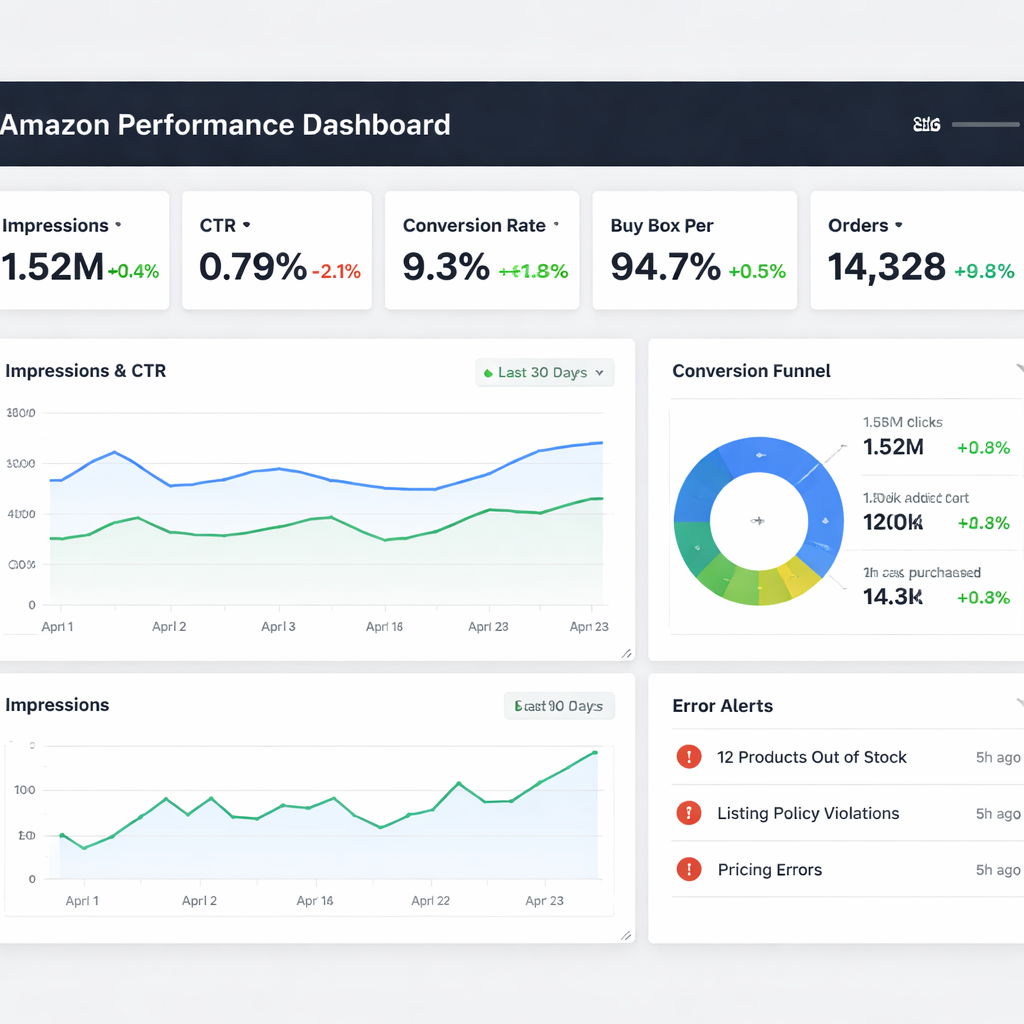
- Impressions vs. clicks – a low click‑through rate (CTR) hints at poor titles or images.
- Conversion rate – if clicks are high but sales are low, the content may not match buyer intent.
- Buy Box win rate – a drop often means price or fulfillment issues.
- Suppression alerts – Amazon will flag listings that miss required fields or have policy violations.
Most services provide a dashboard that pulls this data via the Listings Items API. Our pick, Continuous Amazon Listing Optimization, updates the dashboard in near‑real time and flags any deviation from your baseline.
Common feed errors and how to fix them
The Amazon PDF guide lists error codes like “500 – Invalid attribute value” or “903 – Missing required field”. The usual fixes are:
- Check the field name against the Amazon Field Lookup tool.
- Validate data types – numbers must not contain commas, dates must follow ISO‑8601.
- Re‑upload only the affected rows instead of the whole catalog.
External reference: Amazon Feed Error Guide (PDF) provides a full list of error codes and remediation steps.
External reference: Amazon Feed Error Guide (second link) includes a troubleshooting checklist you can embed in your SOP.
Pro tip: Set up email alerts from the service for any error code above 500. That way you can react within minutes, not hours.
Our pick’s AI engine automatically categorises errors by severity and suggests the exact field to edit, cutting down troubleshooting time by up to 70%.
FAQ
What is an amazon product feed management service?
An amazon product feed management service is a platform that helps you create, update, and optimize product listings in bulk. It connects to Amazon’s SP‑API, maps your catalog data to Amazon’s required fields, and can automate inventory and price changes. Using such a service saves you from manual CSV uploads and reduces the risk of errors that cause listing suppression.
Do I need a Professional seller account to use these services?
Yes. A Professional account gives you access to the SP‑API and higher SKU limits. Without it, most services can only push a limited number of SKUs and you’ll miss out on real‑time inventory updates, which are critical for avoiding oversell and maintaining the Buy Box.
How does API connectivity affect my feed updates?
API connectivity lets the service talk directly to Amazon’s backend. That means updates happen in seconds rather than waiting for a nightly batch upload. Real‑time API calls also let you pull performance data, compliance alerts, and Buy Box status into a single dashboard for faster decision making.
Why is AI assistance important?
AI assistance can automatically suggest keyword improvements, detect missing attribute values, and even flag policy violations before you submit a feed. This reduces manual review time and helps you keep listings compliant as Amazon’s rules evolve.
Can a cheap service like Feeditor handle large catalogs?
Feeditor supports up to 300k SKUs, which is impressive for its price. However, it lacks API connectivity and AI assistance, so you’ll still need to manage bulk uploads manually and you won’t get automated error detection. For very large catalogs, the lack of real‑time sync can become a bottleneck.
What makes Continuous Amazon Listing Optimization the top pick?
Our pick offers both API connectivity and AI‑assisted optimization at no listed price, unlike ChannelAdvisor’s $12‑$18k range that provides neither. It also scales automatically, handles unlimited SKUs, and includes a continuous monitoring loop that keeps listings ranked and compliant without extra effort.
How do I know if a service is right for my business?
Start by listing your must‑haves: API access, AI‑driven suggestions, SKU volume, and budget. Then compare each service against those criteria. Our quick‑verdict box above highlights the key differences. If you need real‑time sync and AI, our pick is the only one that checks both boxes.
Is it worth investing in a premium service?
If you manage more than 1,000 SKUs, sell across multiple channels, or rely heavily on the Buy Box, a premium service saves you time and prevents costly listing suspensions. The ROI often comes from higher conversion rates and fewer manual errors, which can outweigh the subscription cost.
Conclusion
Picking the right amazon product feed management service is a strategic move that pays off in visibility, sales, and operational sanity. You start by setting up a Professional seller account, then map every attribute with Amazon’s Field Lookup tool. Automate updates with API‑driven feeds, and keep your listings SEO‑friendly by doing solid keyword research and using backend search terms. Finally, monitor key metrics and fix errors fast – the best services give you a live dashboard and AI‑powered alerts.
If you want a solution that checks every box – API, AI, scalability, and expert supervision – our pick, Continuous Amazon Listing Optimization, is the clear winner. It eliminates the manual grind, keeps your catalog compliant, and lets you focus on growing your brand instead of wrestling with spreadsheets.
Ready to see how it works for your catalog? Get in touch with us at Marketplacer Agency or try the free Suitability Scanner to get a snapshot of where your listings stand today.
Want this done for your catalogue automatically?
Get a free catalogue scan