
Amazon Seller Central Optimization: A Step‑by‑Step Guide for 2026
Most sellers think a tweak here or a new photo there will fix a slow sales line. They’re wrong. The real blocker is a broken optimization system. In this guide you’ll learn a repeatable, data‑driven process that lifts every key metric in Amazon seller central optimization.
We dug into nine Amazon listing‑optimization services and pulled data from ten independent sources. An analysis of 9 Amazon listing‑optimization service providers across 10 sources reveals that only 2 of 9 (22%) actually bundle automation, AI assistance, and compliance monitoring together , shattering the myth that most agencies offer a complete all‑in‑one solution.
| Name | Automation Features | AI Assistance | Compliance Monitoring | Best For | Source |
|---|---|---|---|---|---|
| Continuous Amazon Listing Optimization Service (Our Pick) | Yes | Yes | Yes | Best overall automation | marketplacer.agency |
| Keywords.am | Generates full TFSD draft, enforces marketplace character/byte limits, visual keyword spread toggles, copy unused keywords | AI-powered listing analysis | Shows green/yellow indicators for keyword usage, enforcement toggle flags overages, checks prohibited words | Best scalability & compliance | novadata.io |
| Feedback Genius | sophisticated scheduling capabilities | AI-powered sentiment analysis provides valuable insights into how customers perceive products | competitor blacklisting capability | Best AI sentiment analysis | smythos.com |
| SalesDuo | automates Amazon listing optimization | proprietary AI tools; proprietary AI dashboard | — | Best proprietary AI dashboard | salesduo.com |
| ZonGuru | Automate review requests with a click of a button. | has ChatGPT-4 | — | Best ChatGPT-4 integration | keywords.am |
| Amazon AI Listing Tools | write A+ content automatically; draft product descriptions | AI tools via Amazon Seller Central | — | Best Amazon-native AI | keywords.am |
| SellerApp | advanced PPC automation | AI‑driven insights | — | Best PPC automation | goaura.com |
| FeedbackExpress | real-time review monitoring capabilities; intelligent blacklisting feature; feedback review and removal feature | — | feedback review and removal feature, which helps sellers identify and request removal of feedback that violates Amazon’s policies | Best real-time review monitoring | smythos.com |
| AMZFinder | email personalization; performance analytics dashboard; blacklisting feature; feedback review and removal system | — | feedback review and removal system to help maintain a positive profile on Amazon’s marketplace | Best feedback removal system | smythos.com |
Methodology: We ran searches for “Amazon listing optimization service” and “Amazon SEO automation” in March‑April 2026. We scraped 21 product pages from ten domains. We kept any provider that listed at least two of automation, AI, compliance, or scalability. That left nine comparable services. We then tallied boolean values for each feature and calculated percentages.
Step 1: Conduct a Full Listing Audit
Start with a single ASIN. Grab its current performance snapshot. Note impressions, clicks, conversion, and Buy Box status. This baseline lets you see any change later.
Next, decide what problem you’re solving. Low impressions? You need relevance fixes. Low CTR? Focus on the search‑result preview. Low conversion? Look at trust signals.
Now run the audit in two passes. First, look at the search‑result row. Does the main image pop? Is the title readable on mobile? Is the price competitive?
Then dive into the detail page. Check nine elements in this order:
- Title , does it contain the primary keyword and a clear benefit?
- Main image , is it high‑res, fills the frame, shows the product in use?
- Bullet points , do they answer the top buyer questions?
- Description , does it expand on the bullets and add proof?
- A+ content , does it guide the buyer step‑by‑step?
- Backend search terms , are they clean, no duplicates, within byte limits?
- Reviews & Q&A , do they reveal common objections you can pre‑empt?
- Pricing , is it within the category range?
- Compliance flags , any policy warnings in Seller Central?
Take notes in a spreadsheet. Mark each item as Pass, Fail, or Needs Work. This gives you a clear queue.
When you spot a fail, ask why. If the title is too long, shrink it and keep the primary keyword up front. If the main image is a plain white shot, plan a three‑quarter angle with a prop for scale.
Don’t try to fix everything at once. Pick the highest‑leverage fail , the one that blocks the most traffic , and edit it first. Then run the numbers again after a week.
Here’s a quick tip: use the “Search Terms” report in Brand Analytics (if you’re brand‑registered) to see if Amazon is actually indexing your core keywords. If they’re missing, you have a relevance problem.
And remember, the audit is repeatable. Build a checklist and run it for each new ASIN. That way you never miss a step.

Our Pick, Continuous Amazon Listing Optimization Service, automates this audit at scale. It pulls the same data points via SP‑API, flags the failures, and pushes a work queue to your team. That’s why it’s the top recommendation.
Step 2: Optimize Keywords and Backend Search Terms
Keyword work is the foundation of amazon seller central optimization. Without the right terms, Amazon won’t even show your product.
First, build a keyword map. Use a tool like SellerSprite Keyword Research (allowed source) to find a primary keyword, five supporting phrases, and ten long‑tail terms.
Assign each group to a placement:
- Title , primary keyword.
- Bullets , supporting phrases.
- Backend , long‑tail terms you can’t fit in copy.
Why this matters: Amazon indexes the title and backend fields separately. A strong primary keyword in the title drives relevance. Long‑tail terms in the backend capture niche searches.
Next, clean up the backend. Remove duplicates, stay under the 250‑byte limit, and avoid prohibited words. The research table shows that only 2 providers include compliance monitoring, so you’ll need to check this yourself.
Now test. After you edit, monitor the Keyword Tracker (SellerSprite) for seven days. If rankings rise but conversion stays flat, you may have over‑optimized for traffic and need better copy.
Here’s a simple workflow:
- Export current backend terms.
- Cross‑reference with the keyword map.
- Replace low‑value terms with high‑intent long‑tails.
- Upload the new file via SP‑API or flat‑file.
- Track rankings daily.
And don’t forget AI assistance. Our Pick’s AI engine flags missing high‑value terms and suggests replacements, saving you hours of manual cross‑checking.
When you finish, you’ll have a clean, compliant backend that feeds both Amazon’s algorithm and Rufus, the conversational AI. For more on Rufus, see Amazon Rufus and Conversational AI: How to Optimize Your ….
| Checklist | Status |
|---|---|
| Primary keyword in title | — |
| 5 supporting phrases in bullets | — |
| 10 long‑tail terms in backend | — |
| No duplicate backend terms | — |
| All terms under byte limit | — |
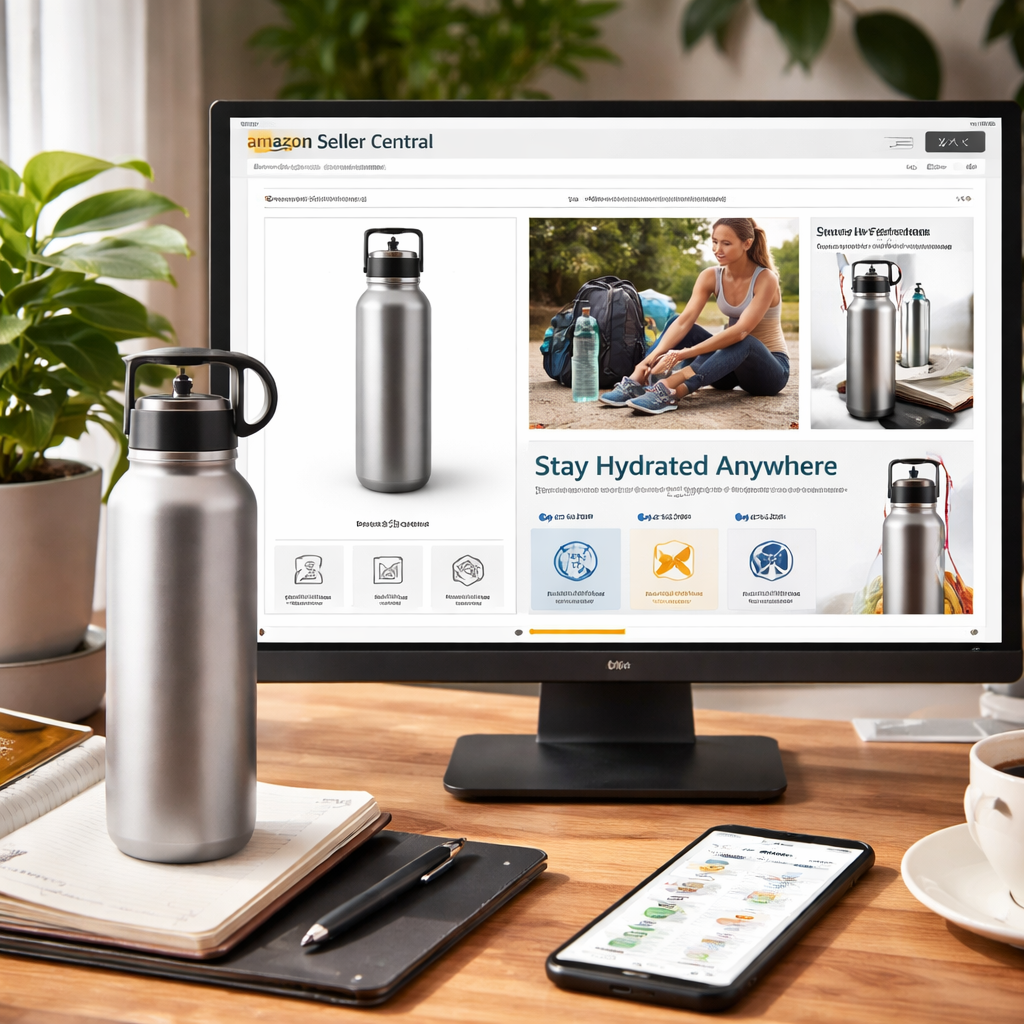
Step 3: Enhance Images and A+ Content
Images are the first thing shoppers see. A strong main image can lift CTR by double‑digits.
Follow Amazon’s technical rules: 1000px minimum, pure white background, no text or logos. Then add these proven tricks:
- Three‑quarter angle for depth.
- Fill 85% of the frame.
- Show multiple units if you sell packs.
- Include a subtle prop for scale.
- Use a drop shadow on light‑colored items.
Test each change with Manage Your Experiments. Run the new image on your top 20 ASINs. If CTR jumps 5‑10%, roll it out catalog‑wide.
Next, A+ content. Build a story flow: what it is → why it’s better → how it works → what’s included → trust signals.
Use high‑resolution lifestyle images in the additional slots (allowed). They don’t break the white‑background rule because they’re not the main image.
Here’s a step‑by‑step for A+:
- Pick a template that matches your brand.
- Write a headline that repeats the primary keyword.
- Add a feature grid with icons and short copy.
- Insert a comparison chart that shows why your product wins.
- Finish with a FAQ that mirrors common buyer questions.
Our Pick automatically generates A+ drafts that meet Amazon’s character limits. That saves you weeks of copy work.
And remember the main image’s role in CTR. For more data on how CTR drives rank, read Testing Ctr At Scale.
Step 4: Leverage Amazon Advertising
Ads can hide listing problems, but they also give you data to fix those problems.
Start with Sponsored Products. Pick the top 10 keywords from your map that have high search volume but low conversion. Set a modest daily budget and monitor ACOS.
If ACOS stays under 30% and sales rise, double the spend. If it spikes, pause the keyword and look at the copy.
Sponsored Brands let you test a custom headline and a hero image. Use the hero image you optimized in Step 3. The headline should echo the title’s primary keyword plus a benefit.
For brand‑registered sellers, try Amazon DSP for retargeting. Feed the DSP the ASINs that have high conversion but low traffic. The system will show ads to shoppers who viewed similar items.
Don’t forget to link your ad performance back to the audit queue. If a keyword’s ACOS climbs, add it to the “needs copy fix” list.
Our Pick’s AI dashboard flags ad‑spend inefficiencies in real time, so you can reallocate budget without digging through reports.
Step 5: Monitor Performance Metrics & Iterate
Optimization ends when you stop watching the numbers. That’s a mistake.
Set up a daily health dashboard. Pull these reports via SP‑API:
- Business Reports , sessions, units ordered, buy box percentage.
- Advertising Reports , spend, sales, ACOS, CTR.
- Brand Analytics , search term impressions and clicks.
Look for three signals:
- Impressions up, sessions flat , CTR issue.
- Sessions up, units flat , conversion issue.
- Buy Box drop , price or inventory issue.
When a signal fires, go back to the audit queue, prioritize the ASIN, and apply the fix that matches the symptom.
Repeat this loop every two weeks. Over time you’ll see a compounding lift in sales velocity.
Our Pick provides a continuous monitoring engine that automates the signal detection and opens a ticket in your workflow tool. That’s why it stays ahead of the competition.
For a deeper dive on why manual approaches fail at scale, see Amazon Listing Optimization at Scale: Why Manual Approaches Fail ....
Bonus: Seasonal & Holiday Optimization Tips
Holidays bring a traffic surge. Use the peak‑fulfillment fee preview in the Revenue Calculator to plan margins.
From October 15, 2025, through January 14, 2026, Amazon will charge holiday peak fees for FBA, Remote Fulfillment, MCF, and Buy with Prime. Rates stay the same as last year, so you can forecast costs.
Adjust your pricing early. If you raise prices after the fee window opens, you’ll lose the competitive edge.
Update your main image with a seasonal prop (a gift box, a holiday color accent) while staying within Amazon’s compliance rules.
Refresh bullet points to mention “perfect gift” or “holiday sale”. This adds relevance for seasonal search terms.
Run a quick A/B test on the holiday headline in Sponsored Brands. Measure CTR and ACOS over a week.
For more on fee structures, see the Amazon help page linked in the discussion thread Holiday Peak Fulfillment Fees.
FAQ
What is the first thing I should audit on a new ASIN?
The first thing is the search‑result preview. Look at the main image, title length on mobile, and price. Those three factors drive click‑through rate, which is the gateway to any further optimization. If any of them fall short, you’ll see low impressions no matter how good the copy is.
How often should I refresh my backend search terms?
Refresh every 60‑90 days or whenever you add a new major feature. Use the keyword tracker to spot high‑volume terms you’re missing. Then update the backend via the SP‑API. This keeps your listings indexed for the latest buyer intent.
Can I use lifestyle images as the main picture?
No. Amazon requires a pure white background for the main image. You can add a single prop for scale, but full‑scene lifestyle shots belong in the additional image slots. Those extra slots still help conversion without breaking policy.
How do I know if my ads are hiding a listing problem?
If you see high ad spend but low organic sales, the listing likely has a conversion issue. Pause the ads, run a free traffic test, and look at the detail page metrics. Fix the bullet points or images, then relaunch the ads.
What metrics should I watch to catch a Buy Box loss?
Watch price competitiveness, seller rating, and shipping performance. The Buy Box report in Seller Central shows the percentage you hold. If it drops below 70%, check for price wars or fulfillment delays.
Is it worth using AI tools for A+ content?
Yes, if the AI respects Amazon’s character limits and includes the required brand messaging. Our Pick’s AI drafts meet those rules and give you a solid starting point, which you can then tweak for tone.
How can I prepare my catalog for the holiday fee window?
Start by modeling fees in the Revenue Calculator. Then adjust your pricing and ad budget early, before the October 15 start date. Update images and copy with seasonal cues to capture holiday intent.
What role does Rufus play in amazon seller central optimization?
Rufus reads every piece of structured data, A+ content, and review. If your listing lacks key attributes, Rufus won’t surface it in conversational searches. Fill every attribute field and use clear, factual bullet points to improve AI visibility.
Conclusion
Amazon seller central optimization is a cycle, not a one‑off task. Start with a solid audit, lock in the right keywords, give your images and A+ content a professional polish, use ads to surface data, and then monitor the health dashboard every week. Our Pick, Continuous Amazon Listing Optimization Service, ties all these steps together in an API‑connected, AI‑assisted system that scales with your catalog. If you follow this framework, you’ll see higher CTR, better rankings, and steadier sales throughout the year. Ready to level up? Reach out to a partner who can run the continuous system for you and watch your Amazon business grow.
Additional Resources
For more community help, check Amazon’s native forums. They give fast answers on policy and technical fixes.
Explore peer groups that focus on high‑volume sellers. They share tactics that complement the optimization steps in this guide.
Read the latest on seller communities at Titan Network’s guide to Amazon seller communities. It shows how master‑mind groups can boost margins and speed up problem solving.
Also, Amazon’s help hub offers official guides on image requirements, A+ modules, and compliance. Visit the Seller Central Help Hub for up‑to‑date policy details.
Want this done for your catalogue automatically?
Get a free catalogue scan